Getting Started
Installing Amulet
For the purpose of this tutorial only instructions for installing Amulet from our pre-built/compiled builds will be described. For instructions on installing from source code please refer to our README.
You can always find our latest release on our GitHub Releases page. The latest release will always be at the top of this page. From there, there should be a section labeled Assets, which should look like the following:
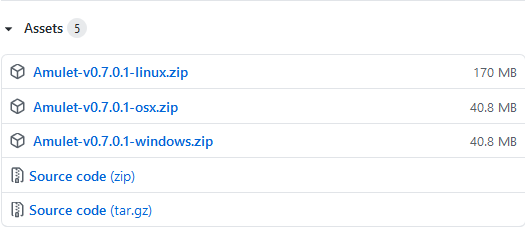
The Assets section for release v0.7.0.1
From there, download the appropriate package for your operating system. After the download has completed:
Windows: run the installer (.exe), or extract the portable .zip archive and run
amulet_app.exemacOS: extract the .zip file and run
amulet_app.appLinux: install the .deb package (Debian/Ubuntu), or refer to the Docker image
Opening a World
Note: We recommend that any world that is to be opened by Amulet is backed up to avoid any loss of data
When starting Amulet, you should be presented with a screen similar to the following:
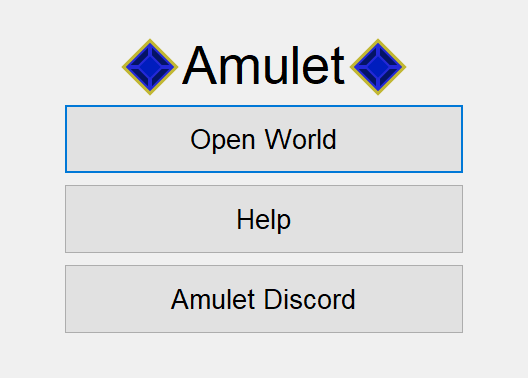
The start screen of Amulet
After clicking the Open World button, you will be presented with the following pop-up dialog:
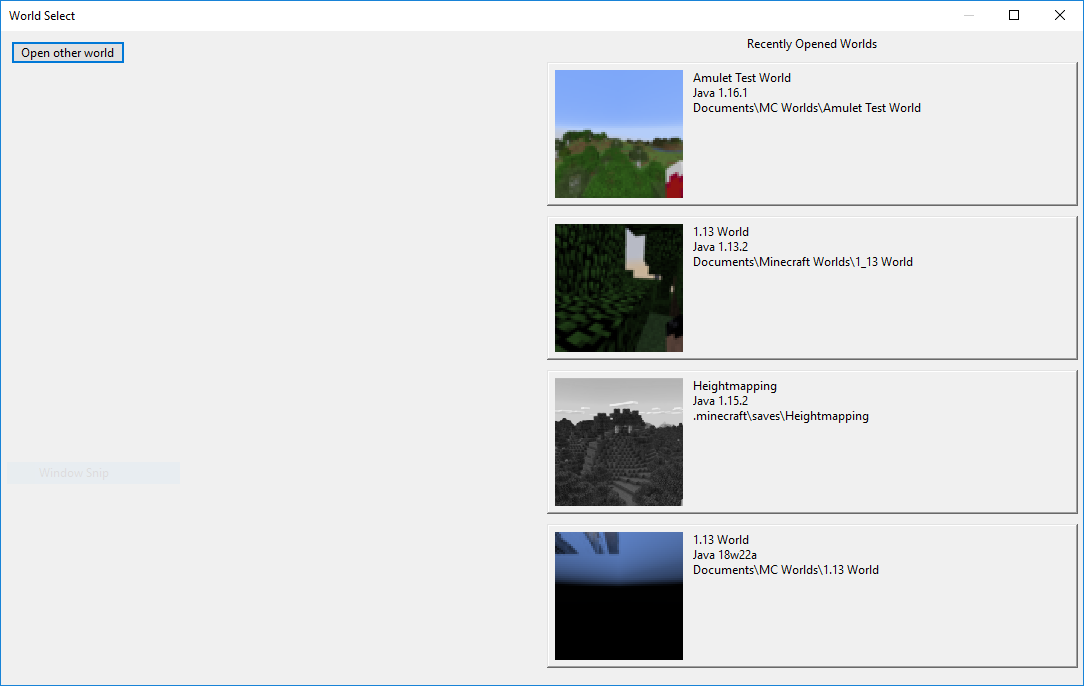
The world select pop-up dialog
The worlds on the right side of the dialog will be worlds that have previously been opened by Amulet,
and clicking the Open other world button will show a directory choosing dialog. Using this dialog,
select the world directory that you wish to open and then select Select folder.
Once the world has been successfully loaded by Amulet, the following will be displayed:
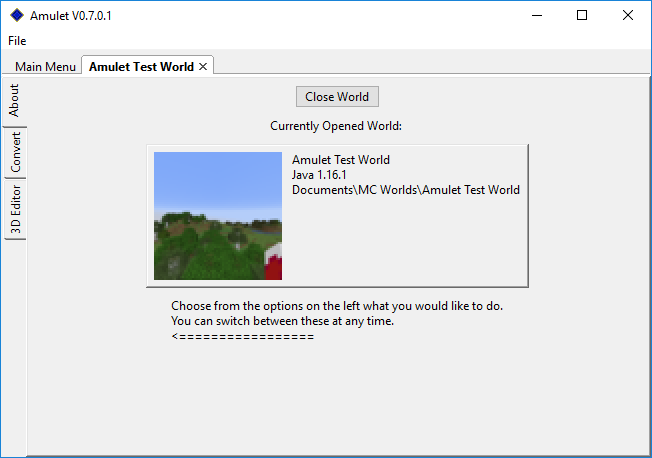
The world screen
From this screen, a summary of information about the world is displayed, such as the world name, the last version and platform of Minecraft the world was opened in, and the ending of the file path where the world is located.
On the left side there are 3 tabs, with the current one being the About tab, where various
sub-programs of Amulet can be accessed and used.
These tabs are:
About- Summary of the opened world’s informationConvert- The Amulet world converter, see World Converter Tutorial3D Editor- The Amulet 3D editor, see World Editor Tutorial